Guide
4 min read · Updated on Oct 11, 2026
How to link a new computer to Reveza
The first computer creates your Reveza installation: the cloud, the dashboard and the vault key. From the second one on, the new computer joins that installation with a code from the dashboard and arrives with your accounts. This guide shows both paths and why the code exists.
In short
- On the first computer,
npx github:dantaspaulo/revezawith no option creates everything. There is no code. - From the second on: the dashboard makes an access code, the new computer runs the installer with
--ligarand shows an 8-character code, and you type that code on the computer already running Reveza. - Nothing that opens the vault shows up on screen: the key travels encrypted only for the new computer. The request lasts 10 minutes.
In this guide
The first computer
On the first computer there is no code at all. Run the installer with no option:
npx github:dantaspaulo/revezaWhen it asks about this computer, choose to create a new installation. It creates your cloud on Supabase, deploys the dashboard to Vercel and generates the vault key, which stays only in this computer's keychain. No code to write. The step by step is in the install guide.
From the second computer on
In the dashboard
Open Computers, click Link new computer and choose on which computer the release window will open. The dashboard shows the command and an access code starting with
rvzc_. That code only lets the new computer ask to join: it does not open the vault.On the new computer
Open the terminal, run the command and paste the access code when it asks:
npx github:dantaspaulo/reveza#v0.6.0 --ligarThe code shows up on the new computer
It shows, in large letters, an 8-character code such as
K7QM-3XRP, and waits.On the computer already running Reveza
It plays a sound and opens a window asking for that code. Type the code shown on the new computer and click Release (on Windows, OK). Three wrong codes refuse the request.
Done
The vault key arrives encrypted only for the new computer, and it joins the installation with the accounts in the cloud vault. The dashboard shows every step and who released it.
The window showed up and you did not ask?
If the code window appears on one of your computers while you are not linking a new one, click Refuse (on Windows, Cancel). Without the code that only shows up on the computer asking, nothing is released.
Why the code exists
The key that opens the vault exists only on your computers. The cloud stores the account logins encrypted with it, so it cannot read them. A new computer has to receive that key from a computer that already has it, without it ever crossing the cloud in the clear.
The new computer creates a key pair only in its own memory and sends the cloud just the public part. The 8-character code comes from that public key: when you type it on the computer that has the vault key, it checks that it is handing the key to the computer you are looking at, and encrypts the vault key only for it. The cloud keeps text it cannot read and deletes it on the first read.
That is why no copied or photographed code opens the vault: the dashboard's access code only lets a computer ask to join, and the 8-character code is not a secret, it confirms who is asking. A request lasts 10 minutes, one at a time; two requests at once are refused.
Without a screen: servers and VPS
If the computer already running Reveza is a headless server, the window has nowhere to appear. In that case, run in its terminal:
reveza ligar XXXX-XXXXReplace XXXX-XXXX with the code shown on the new computer. It works over SSH too. It is the same as typing the code in the window: without it, nothing is released.
Once it is linked
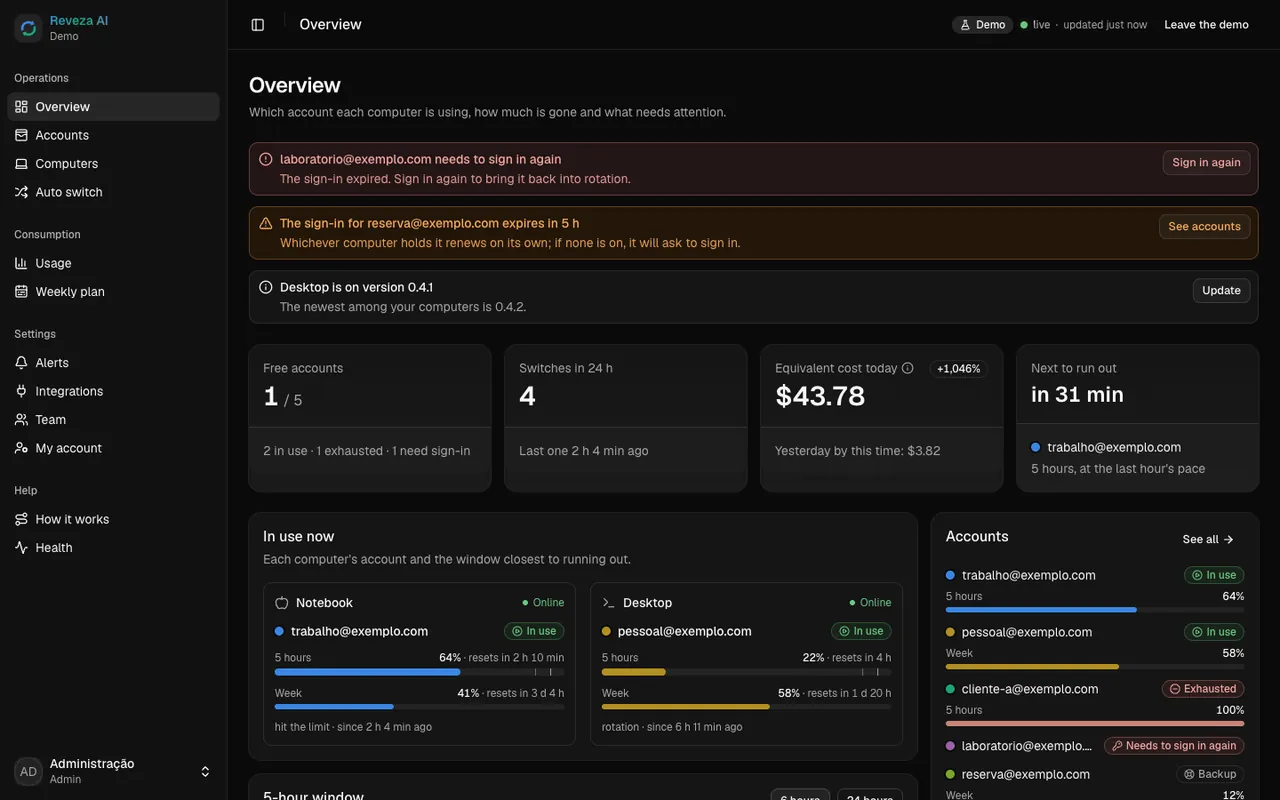
- Each computer has its own identity in the cloud and shows up under Computers, with its system, version and the account in use.
- Each account stays with one computer at a time: the cloud spreads the accounts across the linked computers.
- Lost a computer or passed it on? Revoke just that one in the dashboard: its login is turned off and its sessions drop, and the others keep going.